This guide explains how instructors can view and download student grades using the grade book and the grade book (classic).
About the grade book
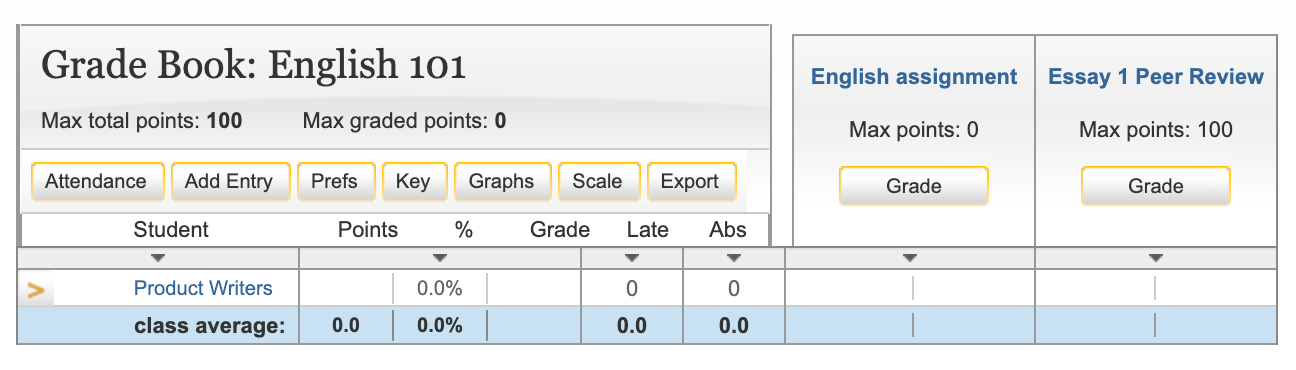
To access the grade book, select the Grade Book tab. Students enrolled in the class appear in the left column of the class grade book. Turnitin assignments for the class are listed along the top of the grade book view.
There are multiple methods that allow an instructor to enter grades into the grade book. Grades may be entered directly from the grade book from the main grade book window or from the assignment and student pages.
The grade book will also accept grades entered for papers and peer reviews outside of the grade book. For example, an instructor can enter grades using Online Grading, a Online Grading rubric scoring card, or for Peer Review assignments. Student grades may also be entered when viewing a student paper from the assignment inbox.
There are currently two views for the grade book depending on assignment type and where you are accessing from.
The grade book allows instructors to track student grades for Standard, Clarity, and Multipart assignments in a class from the Turnitin website. Standard and Clarity assignments appear in the Grade Book after they have been created and opened. This view is not available through an LMS.
Elements of the grade book
The grade book provides an overview of student grades for assignments in the class. Grades cannot be added or edited from the grade book. To add or edit a grade, open the assignment. The updated grade will appear automatically in the grade book.
- Student details: The names and email addresses of students enrolled in the class.
- Assignment details: The name and type of each assignment. The grade book displays grades for Standard, Clarity, and Multipart assignments only. Parts of a Multipart assignment appear as individual assignments.
- Max Points: The highest number of points a student can earn for each assignment.
- Student grades: The grade awarded to each student for each assignment. A cell is empty if the student's work has not yet been graded.
- Download Grade Book: Select this button to download a CSV file of the Grade Book table. The grade book will only display and download the 50 most recent assignments.
The grade book does not display grades for Standard (Classic), Handwritten, or PeerMark assignments. To track grades for Standard (Classic) or PeerMark assignments, use the Grade book (classic) tab.
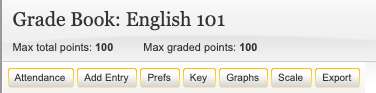
The grade book product allows an instructor to track student grades and attendance for a class.
The grade book allows an instructor to track student grades in their class for Standard (Classic) or PeerMark assignments.
Elements of the grade book
- attendance - instructors can check a box indicating an absence or late arrival for a student on a specific date
- add entry - create a new entry on Turnitin for an assignment not created in Turnitin
- prefs - instructors may set the specific grading format for a course
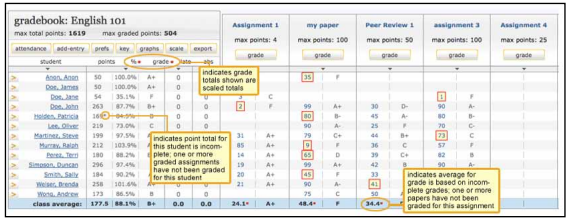
- key - opens an informative pop-up window that displays the meaning of all information on the grade book page
- graphs - statistical graphs that can be used to display student and class performance
scale - used by an instructor to weigh the value of assignments as part of the possible total number of points in the class - export - download a Microsoft Excel spreadsheet version of the current grade book
grade - access to the grading page for a specific assignment - assignment name - select an assignment name to access further information about this assignment and the grades given in the assignment as well as statistics.
Select the key tab to view a visual key explaining the meaning of the asterisks and other indicators that can appear on the grade book page for an instructor.
Grade book preferences
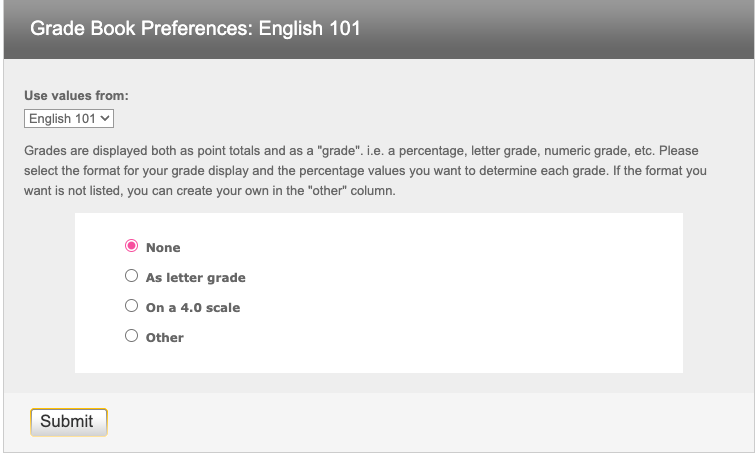
The preferences page allows an instructor to control the format in which the grades in the class are displayed. The available grade display options are letter, point, scale, or custom. This area also allows instructors to customize the percentage values that equate to any given grade, for example: A = 92-100%, C+ = 78-79%.
- To open the grade book preferences page, select the prefs button.
- From the preferences page, the instructor can select and customize how grades are displayed and the percentage value used to determine the grades. The instructor can choose to display grades as a percentage, a letter grade, or using a 4.0 scale.
If using a different grading system, the instructor can create their own grading format by selecting other and entering the percentage breakdowns and grades desired for the class.
When creating a customized grading scale, be certain that all possible ranges of percentage are accounted for. If there are any gaps, an error message will be generated.
- Once a format has been selected for the grades, determine the breakdown that should be used for each grade. If the instructor would like to import the values from another class, use the drop-down menu to select the class. When the modifications are completed, select Submit to return to the grade book.

Adding an entry to the grade book
Assignments that have been added to Turnitin such as paper assignments, peer reviews, and revision assignments are automatically assigned a grade book entry. Any additional entries, such as in-class exams or presentations, must be added manually by the instructor.
This allows instructors to track and save grades in a single location through Turnitin and automatically return this information to the students on the post dates for the assignments that have been graded.
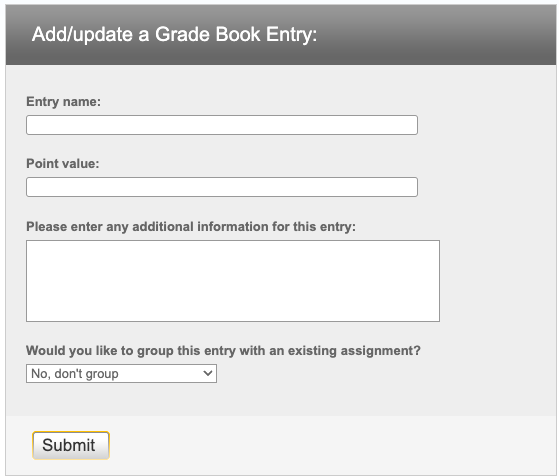
- Select the Add Entry button.
- On the add entry page, fill in:
- an entry name
- a point value for the entry
- (optional) additional information for the entry
- (Optional) To group the new entry with an existing assignment, use the pull down menu to select the assignment. Grouping an assignment places the entry in the grade book as a subset of the assignment selected.
- Select Submit to save the entry and add the entry to the grade book.

Entering grades in the grade book
Grades can be entered from the grade book assignment or grade book student pages. The grade book assignment page lists all student submissions to an assignment.
- To open an assignment page, select the Grade button beneath an assignment.

The grade book student page shows a selected student’s submissions and grades.
- To open a student page, select a student’s name.
- To grade a submission, enter an integer point value next to the submission. To view the grades before submitting them to grade book, select the calculate link.
- When point values are entered, select the Submit button.
- The grades will be entered into the grade book and the instructor will be returned to the grade book main page. The main page will display the point values entered along with the corresponding grades.

Dropping grades
An instructor can automatically drop the lowest grade for all students in a class.
- To drop the lowest grade, go to the scale page.
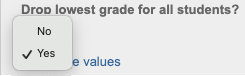
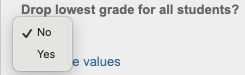
- From the drop down menu labeled drop lowest grade for all students? Select Yes.
- When the lowest grade has been dropped, each student’s lowest grade is marked in grade book by placing the grade in a highlighting square.
- These grades can be reinstated at any time by returning to the scaling page and changing the drop lowest grade for all students drop-down menu to No.
- When the lowest grade has been dropped, each student’s lowest grade is marked in grade book by placing the grade in a highlighting square.
Changing point values in the grade book
Each assignment in grade book carries an assigned point value. From the grade book, an instructor can add a point value to an assignment or adjust the point value for an assignment at any time.
The grade book assignment point value can be overridden by the Online Grading rubric scorecard point value.
- Enter the grade book for the class by selecting the Grade Book tab.
- Select the Grade button beneath an assignment to open the grade book assignment page.
- Enter the desired value in the maximum points field.
- Select Submit to save the new assignment value.
Scaling grades
With grade book the instructor can scale grades in the class and recalculate them instantly. The instructor may also select whether to drop the lowest grade for each student in the class.
- To open the scale page, select the scale button on the grade book main page.
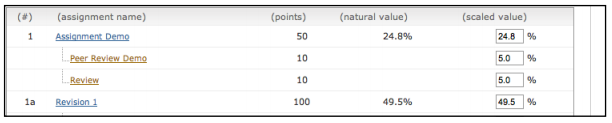
- The scale pages shows all of the instructor’s assignments and entries along with the assignment point values. The natural value column shows the value of the assignment without scaling.
- For example, if the grade book shows four assignments each with a 100 point value, the natural value of each would be 25%.
- To increase or decrease value of an assignment, enter a new value in the scaled value field. Make sure the values total to 100% by the end of the class.
To view the new scaled grades, select Submit to return to the main grade book view where the scaled values are now displayed.
Scaling grades does not change the point values of assignments. Scaling grades creates new values for assignments relative to each other and the total value of all assignments in the class. These relative values are reflected in the total percentage and final grades only.
- The grade book will now display grades based on the new scaled values entered by the instructor.
- To view the grades based on their natural value, select scaling: hide link. Changes can be made to scaled values by returning to the scale tab and adjusting the grading scale.
- To view the grades based on their natural value, select scaling: hide link. Changes can be made to scaled values by returning to the scale tab and adjusting the grading scale.

Exporting from the grade book
An instructor can save an offline copy of the grades entered in the Turnitin grade book for a class. The grade book information can be exported as a Microsoft Excel® spreadsheet.
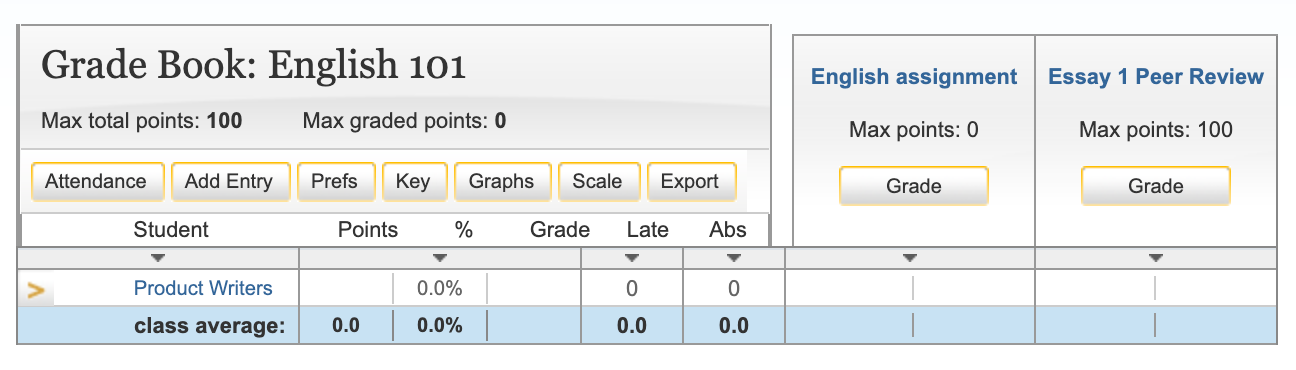
To export grade book information, select the export button on the grade book menu page. This will create the spreadsheet and initiate a download of the grade book data to the instructor’s computer.
Graphing tools
With Turnitin’s graphing tools, an instructor can effectively track class and student performance. To access grade book’s graphing tools, select the graphs button on the main page of the grade book for the class.
On the graphs page, use the show: drop-down menu to choose what type of graph to display. The graph types available are:
- graphs showing class performance for all assignments
- graphs showing class performance for one assignment
- graphs showing performance of a student for all assignments or one assignment
- a graph comparing the performance of a student to the rest of a class
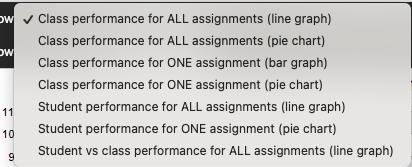
Most graphs are available in a line graph or as a pie chart.
- When a graph for student performance or assignment performance is selected, a new drop-down menu will appear.
- Select a student or assignment to display, depending on the graph type that is being viewed.

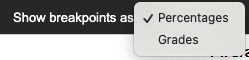
When viewing a line graph, the user has the option of showing grades instead of showing percentages.
- To show grades, use the show breakpoints as: drop-down menu and select grades. To hide the grades and only display percentages, select percentages.
When viewing a bar graph for class performance in an assignment, an option is provided for viewing percentages or points.
- Use the break down distribution using: drop-down menu and select percentages or points to change this option.

Printing a grade book graph
All of the grade book graphs are printer friendly.
- To view a graph in print format, select the Print View button.
- This will open a separate window. Select the print this graph link at the bottom of the graph.


The grade book student page
The top of the student grade page gives the instructor a summary of a student’s grades and attendance. If the grades in the class have been scaled, an asterisk will show up next to the student’s overall grades indicating that the values are scaled values.
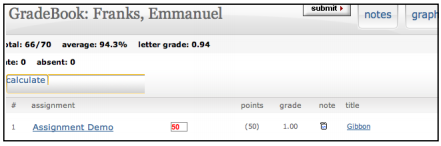
- The view can be toggled between scaled and natural grade values by using the show totals based on: drop-down menu to select scaled values or natural values.
- The instructor may also view the student’s grades in a variety of graphical formats using our graphic tools. To access the graph displays, select the Graphs button for the student.

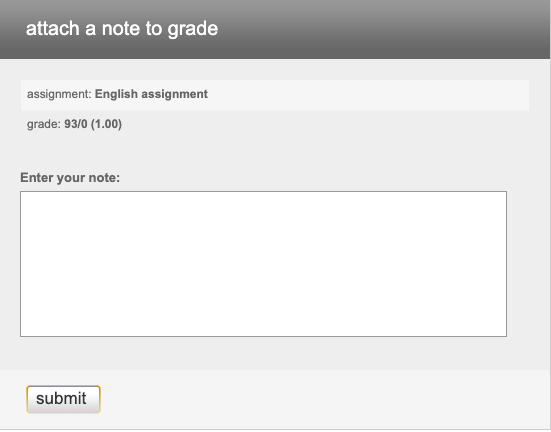
The instructor is able to send a note to a student for the grade given to the student for their submission in a particular assignment.
- To enter a note for a student on an assignment, select the note icon next to a submission.
- On the note page, enter the text of the note for the student in the text box provided. Once this is complete, select Submit to save the note making it viewable for the student.
- The instructor is also able to enter a general note for a student from the student notes page. To open the note page, select the Notes button.
- From the student notes page, add a general note by selecting the Add Note button.
- From the student notes page, the instructor can also perform these actions:
- toggle between viewing assignment specific and general notes using the show pull down and selecting all notes, assignment notes only, or class notes only
- update and delete notes by selecting the icons under the update or delete columns
- return to the student’s grade page by selecting the Back to Student button